Replace placeholders by awesome sprites with AI in 3 steps
When I prototype new games, I usually create placeholders for the first iterations until I have a playable version I’m happy with. And as…
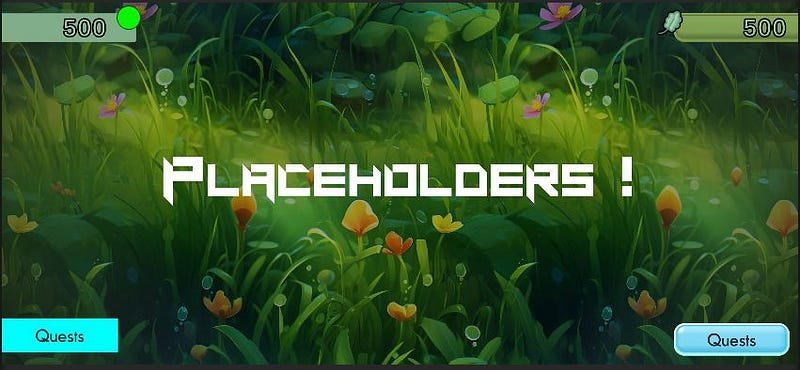
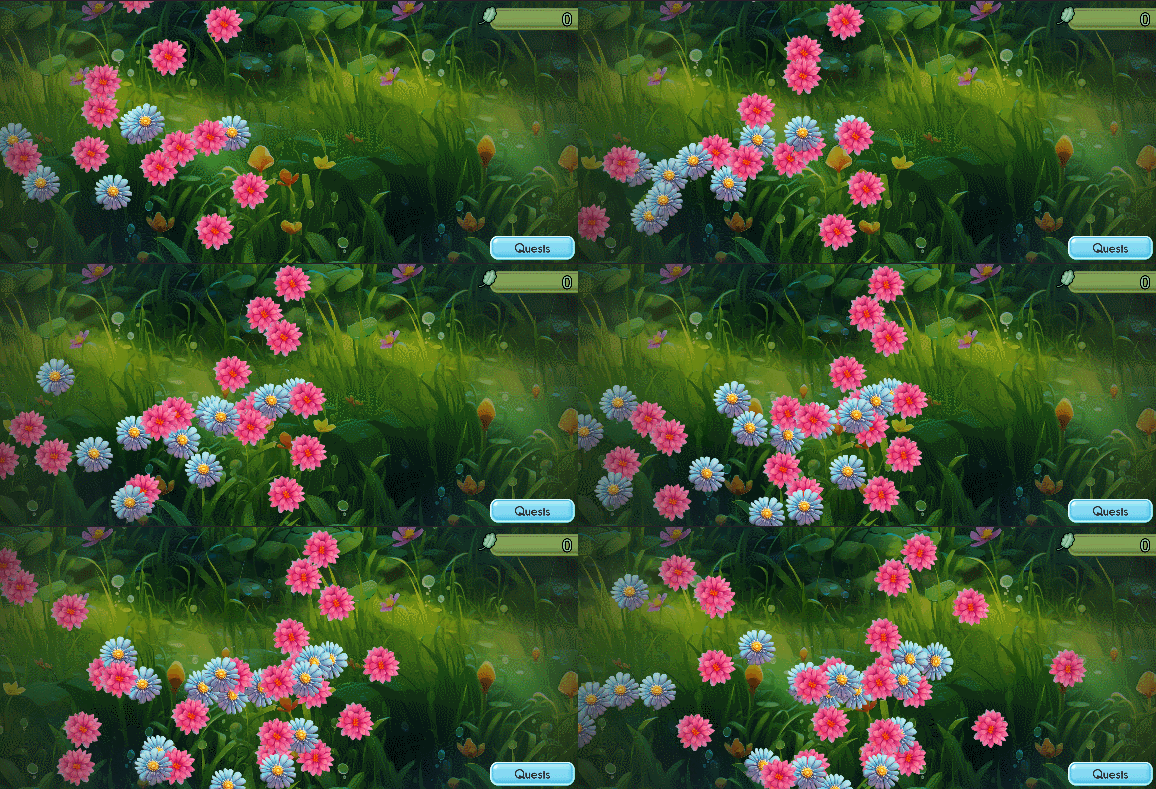
When I prototype new games, I usually create placeholders for the first iterations until I have a playable version I’m happy with. And as I’m coder and no artist, even when I create those placeholders, they are ugly rectangles or circles. But what if I could get good looking placeholders?
Follow me on this journey where I explore and show the path by using generative AI to remove the need of placeholders.
1. The description
First, you need to know what you are looking for. For instance, let say we want to have some UI sprites and also some flowers for the game itself. You can easily find some game assets prompts in the internet to start with, then try for yourself some modifications to get something near what you want. One key element in the prompt is to specify you want a spritesheet or asset sheet and isolate on white background (or another color if your game has a specific overall color, but white is good for general purpose).
For this sample, I used this prompt:
game asset sheet, flower top view, in the style of detailed character illustrations, 2d game art, hyper-realistic details, rounded shapes, bright colors, bold shapes, subtle gradients, Tim Shumate, isolate on white background, cinematic lighting, disney styleMy favorite tool here is Midjourney, I tried others generative AI for images but never got near the same global quality and variations on sprites than I got from Midjourney. That may change in the future as lots of newtools are published every week (or every day I may say).
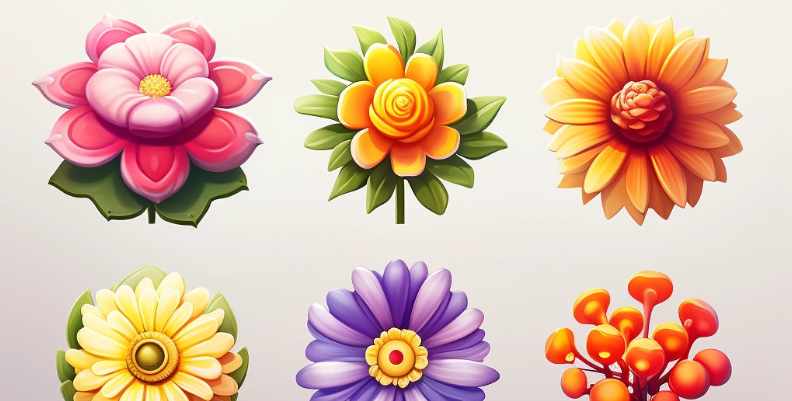
Oh, here is one last tip for this part: by using the exact same prompt multiple times, you can have veeeeery different results, so don’t hesite to hit the retry button tons of times to get what you like! (it may not be the case with specific prompt on MidJourney 6, but that’s a different story).
2. The path to the unique sprite
Now that you have a spritesheet, it’s time to slice it! I studied more than 15 development languages in my past, but I’m new to Python, so I’m still learning, and don’t know how to do file and picture manipulation with it. But it’s easy to setup a python environment on any computer and launch the code in a few steps, so I went for it… and asked chatGPT to write the code for me!
First time, I only asked to load the spritesheet, then slice it by using the number of sprites on it, as an array with columns and rows. Obviously it was not good enough as the generative AI is not creating a perfect grid with sprites on it. So I upgraded the code to use a DFS (Depth First Search) algorithm: as soon as there is a colored pixel, start from it and extend the region until you got all colored pixel, then cut it, write it in a PNG file and search for the next one.
It…was… extremely easy… and powerful to slice the spritesheet that way!
But wait, those PNGs files.. they have sprites with white background on it, not useful at all!
3. Full disclosure
I was wondering what would be the best way to remove the background from the image, then obviously remembered the remove.bg website that do just that for any photo, that could do it for sprites also, right?
Well, yes. They even have an API you can call from command line with 50 low resolution tries per month (they call it “free previews”). Again asking chatGPT to use this API to make the spritesheet transparent before slicing it (of course you use the API before slicing it, otherwise it would consume a lot of API calls for nothing) and… That’s all!
By using two different generative AIs + an online AI tool, you now have a tool to generate unique transparent sprites for your prototype with only one method to call.
I was astonished on how easy that was, and I’m sure someone has done a tool from it by now, but until that, you can find the SpriteSplitter script in this repo on my github.
Cheers,