Improved Unity Editor: Dynamic Enums!
When you design in Unity, an issue that is often raised is how to link design data to game objects. This is my answer to this issue.
Among all the packages I have created for Unity, I like this one a lot, and yet, it is almost the last one I created to help me and others. When you design in Unity, an issue that is often raised is how to link the design data from documents, sometimes done with online sheets, to objects and scenes inside unity.
Then, you have to use it in your prefabs, editor tools, etcaetera. But how can you both have optimized code and intelligible data in the editor? In other languages you have dynamic enum and other sorts of things, but not here. There’s also tools that generates code from a list of strings like the localization tools, but they are still hard to use.
This tool, packaged under the name String Data List, helps answer that: you can code with simple integers and design using a list of strings inside the editor, like the sample below.
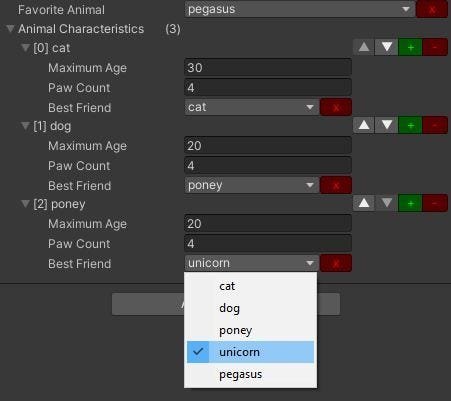
How does it work ?
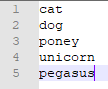
First, there is the list: a simple text file containing one string per line.
Then, you have to link the list with a field or property in your MonoBehaviour. I chose to create the Select attribute to do that (like the SELECT tag in old html for dropdown lists). It takes one string parameter matching the text filename. It acts as the ID of the data list.
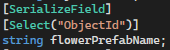
The SelectDrawer takes it from there. It uses the string parameter to load the text file and replace a standard integer field or a string field by an enum list, it’s as simple as that!
Well, it could be. But it takes into account other cases too: the integer property can be a string property, the drawer adapts itself.
It also displays a red X button to reset the value of the field: -1 for an integer, and null for a string.

Also: it manages errors. If the text file does not exists and contains nothing, the property displays the default editable field from the detected type.
And last, but not least: you can add a second parameter to display a warning if an error is detected.

The DataList attribute
And even then, it was not enough. In fact, the first need I had was to display a list of names instead of list of “element + index” in front of a list, even for elements that do not have a string name property as their first one.
But I faced an issue here: how to have a drawer for the entire list instead of having it for each item? If you ever tried it, you know that an attribute in front of a List is called for each item and not the list itself, so I had to find a workaround.
My workaround is to use a generic DataList<T> that encapsulates the list itself. For convenience, I defined an indexer operator to call the internal list indexer, and a Count property also.
This way, you can have a DataList<Animal> and use it like you would have use the standard List<Animal> with indexer and count. In fact, you’ll have to create an AnimalList which extends the DataList<Animal> as Unity is not able to serialize generic type (yet?), but it’s one line of code for the whole project usage.
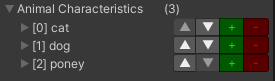
In the Unity editor, it will look like below. In this sample, we use the same text file as shown at the beginning of this article.
Want another fancy feature? I have two!
- Multiple files: you can have multiple files with the same name in different Resources/datalist folders. The names will all be added in the enum list. Convenient for string properties (for instance, you want to split different types of animals and sometime being able to select from all of them), it can be risky with integer properties as there’s no guarantee on the loading order!
- Multiple ids for select: you can choose to load multiple files for one field with a select attribute. It allows you to have distinct names, for instance names of vegetables and fruits, then a property where you would have both, you can simply tell it to use both! Like the previous one, it’s dangerous to go al.. erh, no.. to use an integer here.
Available freely on openUPM
Now, you may want to use this String Data List package in your projects, I sure do. To use it widely in mine, I’ve imported it in the openupm package repository. To import any of the tools I wrote available on OpenUPM, follow the steps below.
1. Add openUPM as a scoped registry in unity
From the project you want to add your package to, go to your project settings, in the section named package manager where you can add a scoped registry.
From the same registry, openUPM, you can add multiple scopes if you find other useful assets there, so be sure to add every scope you want to so Unity will search for them at the right place. Set the name as you wish, I just use OpenUPM. Set the URL to https://package.openupm.com then start by adding “com.fredericrp”, then apply.
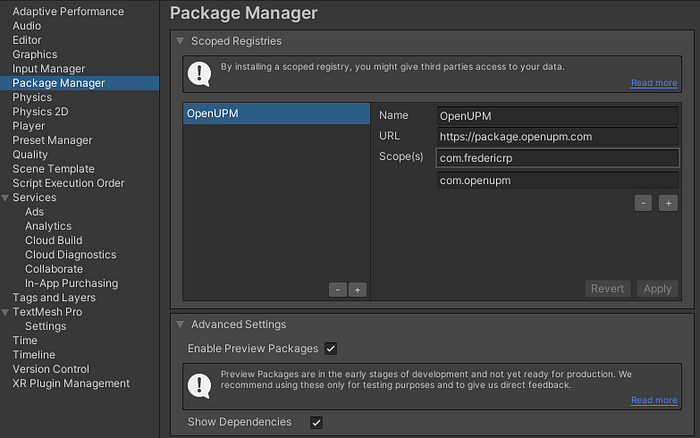
Add a scoped registry in the project settings
2. Import the package from the Package Manager
Once it’s done, you will see the matching registries in the unity package manager, under the section “My Registries”: my packages are grouped under the name “FredericRP”. Like any other package, you can install, update and remove the packages directly here, and they will appear under the “Packages” folder of your project.
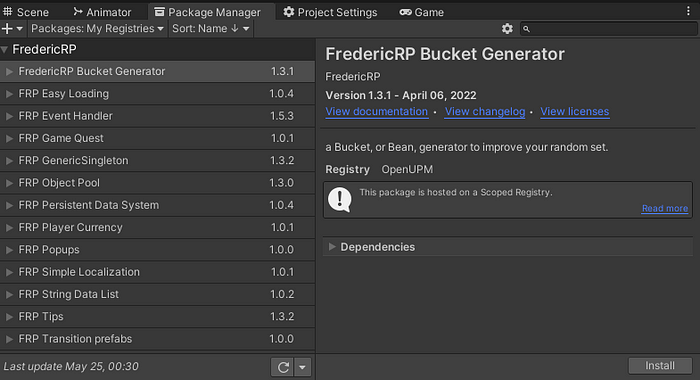
Find the String Data List and others packages right there!
This is one of the many tools I share on openUPM, follow me to understand and know all the others tools I share and follow my journey with unity!
If you liked this article, I let you applause or comment it, and thanks for reading up to this very end!